
Simplified personal cloud with built-in storage and a more straightforward software experience.
Synology storage buying guide
Synology NAS Buying Guide
Choose a Synology system for home files, business backup, creative work, private cloud storage or surveillance, then match the drive bays, compatible storage, network speed and expansion plan to the workload.
Start with the use case: decide what must be stored or protected, estimate capacity and growth, then confirm the exact model supports the required DSM applications, drives and upgrades.
Home & personal
Business & creative
Enterprise & surveillance
Guide reviewed regularly. Specifications, compatibility and availability can change.
Choose the outcome first
Which Synology path fits your workload?
Start with the people, data and applications involved. The purpose normally narrows the right product family faster than comparing model numbers first.
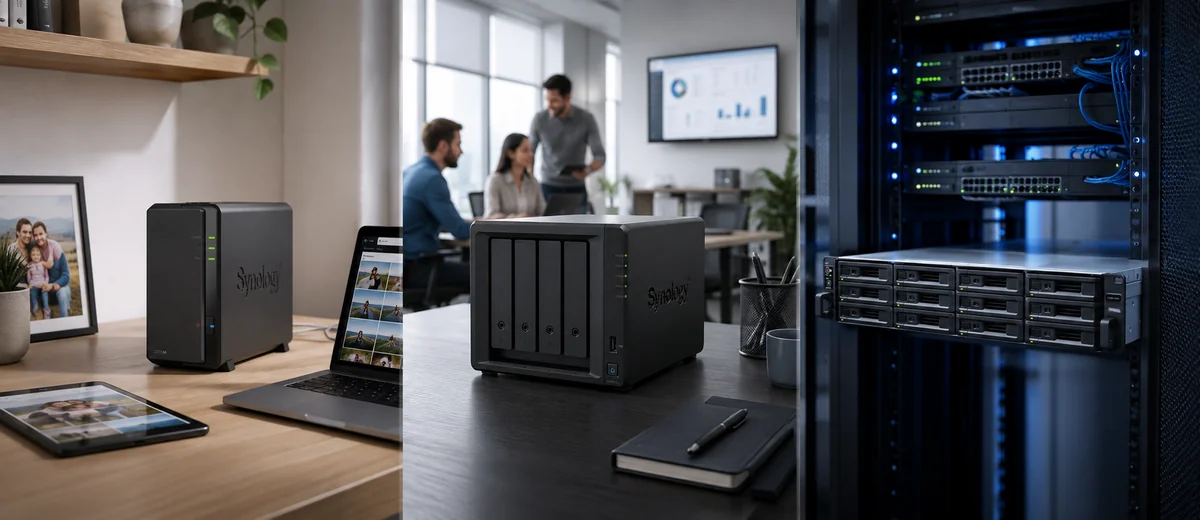
01 Personal & home NASPhotos, personal files, computer backup, media libraries and a private cloud. 02 Small & midsize businessShared files, endpoint backup, remote access, collaboration and room to grow. 03 Enterprise & rackmountServer rooms, larger storage pools, virtualisation storage and rack deployments.
One compact selection hub
Find your Synology by family, bay count or buying steps
Use the three views below instead of scrolling through separate repeated sections.
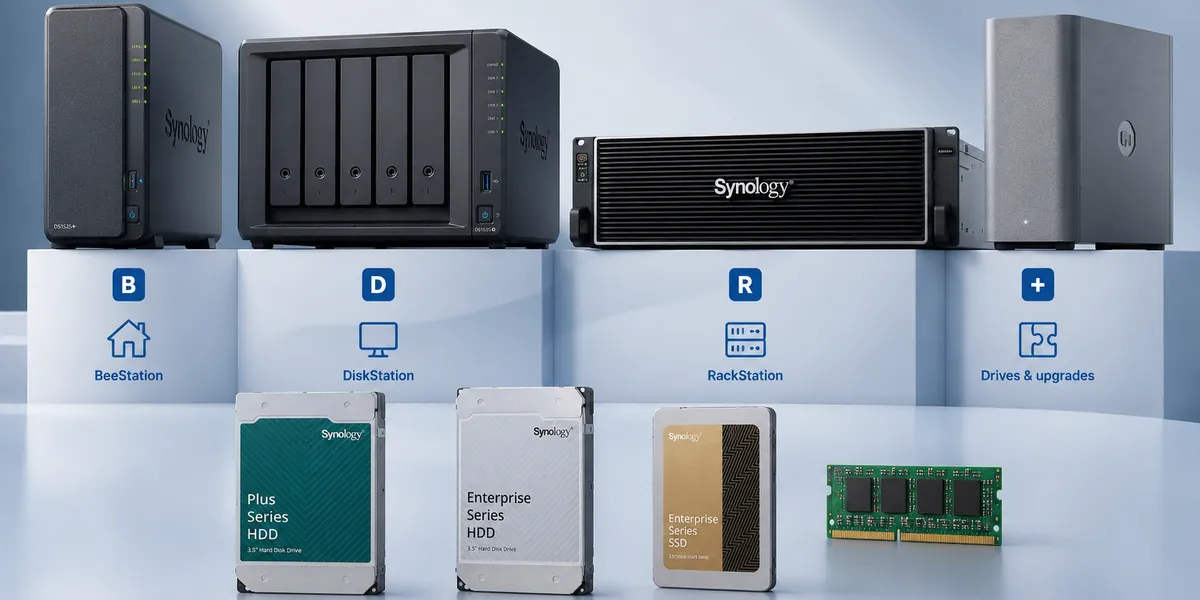
Desktop DSM systems covering entry, Plus, neo+ and higher-capacity configurations.
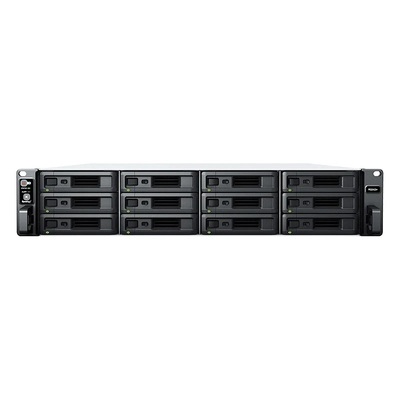
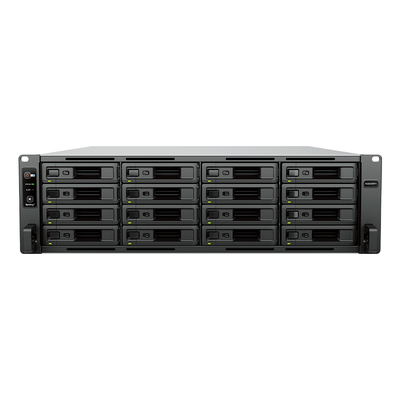
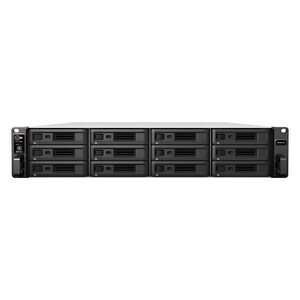
Rackmount DSM systems for server rooms, racks and business storage deployments.
HDDs, SSDs, memory, networking and expansion selected for the exact NAS model.
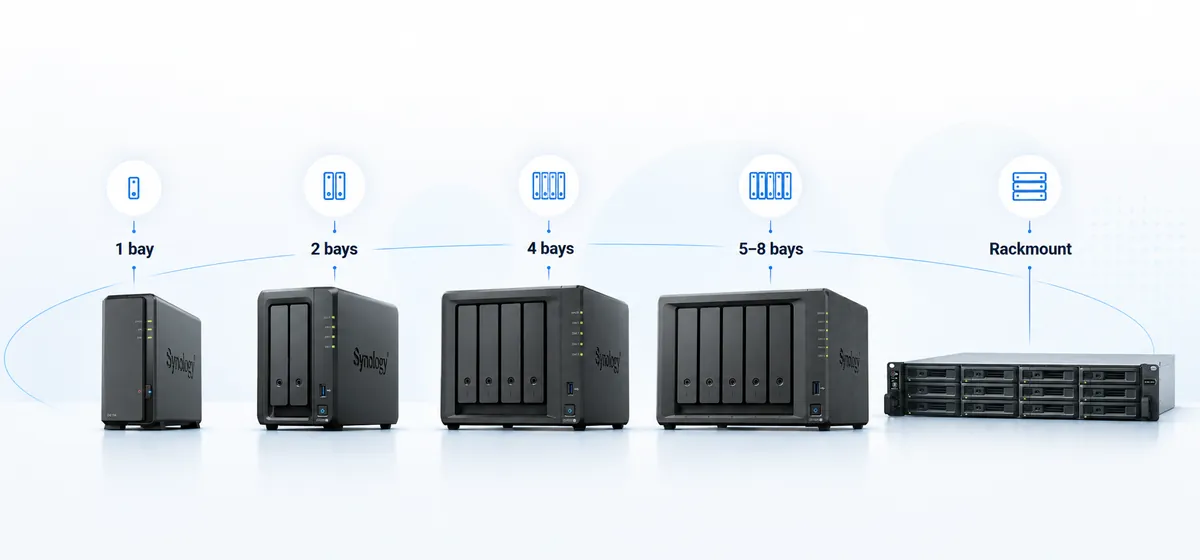
1 bayBasic storage with a separate backup; no internal drive redundancy.
2 baysA common home and small-office starting point for one-drive redundancy.
4 baysMore capacity and RAID flexibility for homes, creators and growing teams.
5–8 baysLarger datasets, more users, longer retention and a broader growth path.
RackmountServer-room installation, centralised storage and model-specific expansion.
- Define the workloadList the users, devices and applications: files, photos, backup, virtual machines, surveillance or creative work.
- Plan capacity and growthAdd current data, annual growth, retention, snapshots and backup copies.
- Select enough drive baysAllow for redundancy, usable capacity and future drive expansion.
- Match network speedThe NAS, switch, cabling and clients must all support the intended link speed.
- Confirm compatibilityCheck drives, memory, NVMe SSDs, network cards, expansion units and DSM packages.
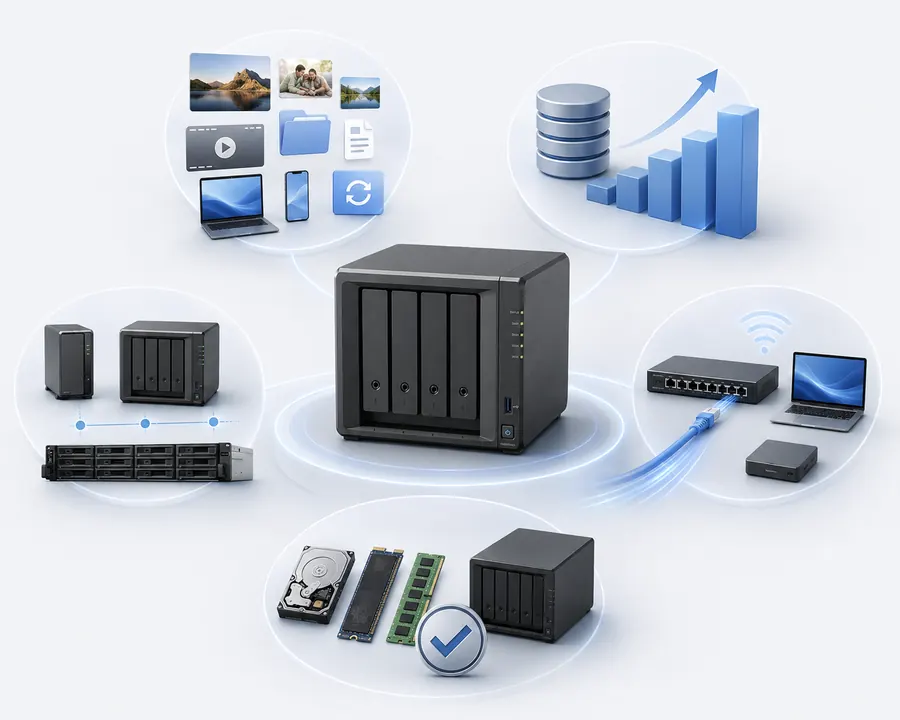
Important: RAID or SHR can help with drive-failure continuity, but it is not a complete backup strategy. Keep another copy of important data outside the main NAS.
Current desktop starting points
Compare the Synology models most buyers narrow down first
These cards simplify the first comparison. Open the full table only when you need more detail.
DS225+
A two-bay starting point for home files, photos and small-office storage.
- 2 main bays
- 1 × 2.5GbE + 1 × 1GbE
- No external drive expansion
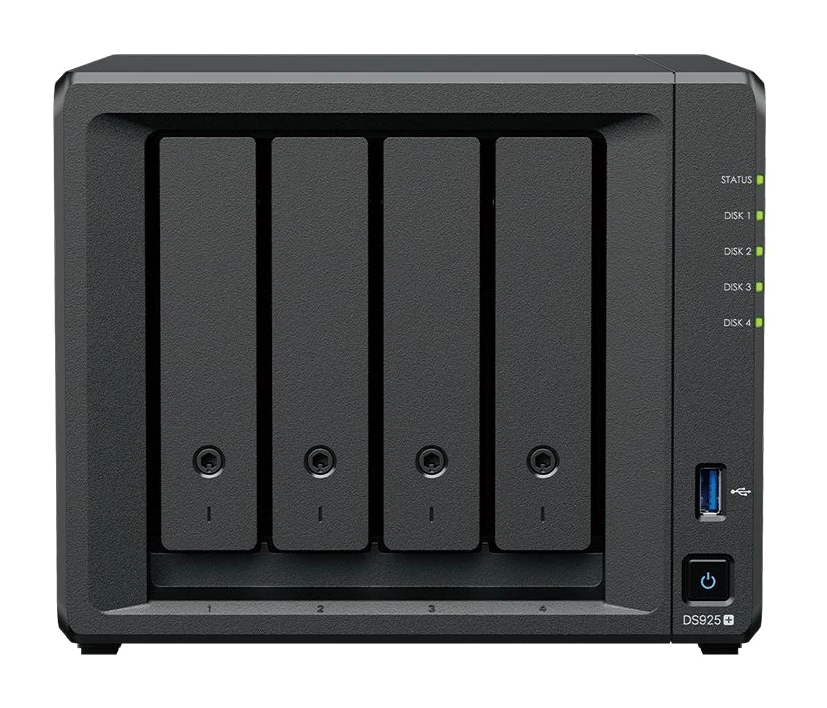
DS925+ / neo+
For growing teams, backup and multi-user file services.
- 4 main bays
- 2 × 2.5GbE
- Up to 9 drives with DX525
DS1525+ / neo+
For business backup, creative workflows and a larger expansion path.
- 5 main bays
- 2 × 2.5GbE; optional 10GbE
- Up to 15 drives with 2 × DX525
DS1825+ / neo+
For larger business storage and heavier multi-user workloads.
- 8 main bays
- 2 × 2.5GbE; optional faster networking
- Up to 18 drives with 2 × DX525
Open the complete current DiskStation comparison
| Family | Main bays | Built-in networking | External expansion | Typical starting point |
|---|---|---|---|---|
| DS225+ | 2 | 1 × 2.5GbE + 1 × 1GbE | No external drive expansion | Home files, photos and small-office storage |
| DS425+ | 4 | 1 × 2.5GbE + 1 × 1GbE | No external drive expansion | Four-bay home and small-business storage |
| DS725+ / neo+ | 2 | 1 × 2.5GbE + 1 × 1GbE | Up to 7 drives with DX525 | Compact system with a growth path |
| DS925+ / neo+ | 4 | 2 × 2.5GbE | Up to 9 drives with DX525 | Growing teams, backup and multi-user files |
| DS1525+ / neo+ | 5 | 2 × 2.5GbE; optional 10GbE | Up to 15 drives with 2 × DX525 | Business backup and creative workflows |
| DS1825+ / neo+ | 8 | 2 × 2.5GbE; optional faster networking | Up to 18 drives with 2 × DX525 | Higher-capacity business storage |
Plus models
- Ship with ECC memory in the current paired families.
- Suit buyers who prefer the ECC configuration from the start.
- Installed memory varies by exact model.
neo+ models
- Ship with a more accessible non-ECC memory configuration.
- Share the main platform, bays and networking of the paired Plus model.
- Check compatible memory upgrades and do not mix ECC and non-ECC modules.
DeviceDeal RackStation selection
Capacity, resilience and recovery
Plan drives, SHR, RAID and backup together
Raw drive capacity is reduced by redundancy, formatting, snapshots and operational free space.
SHR-1
A practical one-drive-failure-tolerance option for many compatible multi-bay systems.
SHR-2
Uses more capacity but can tolerate two drive failures where the NAS and drive count support it.
Separate backup
Protects against risks RAID cannot cover, including deletion, ransomware, theft and site damage.
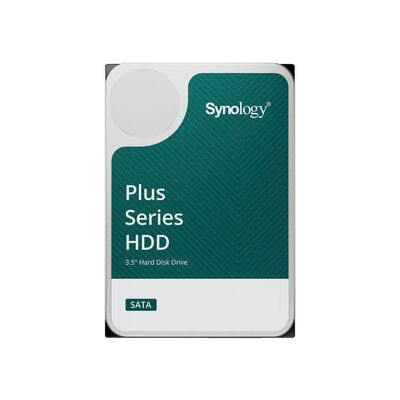
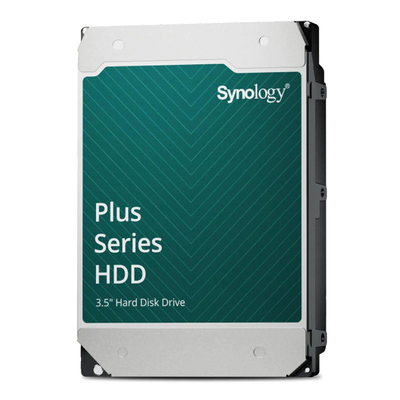
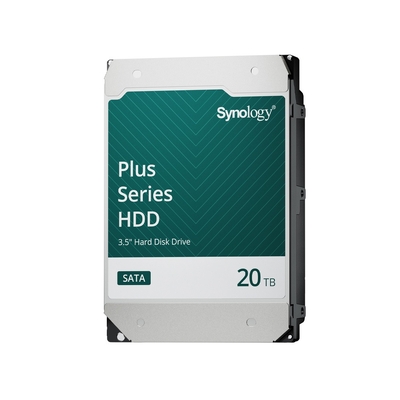
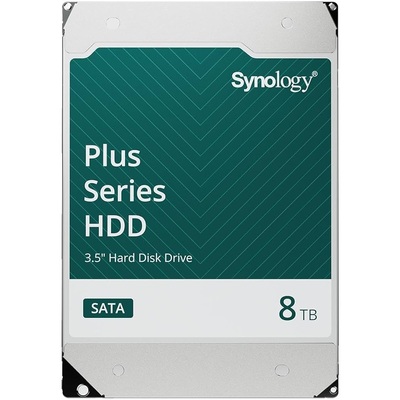
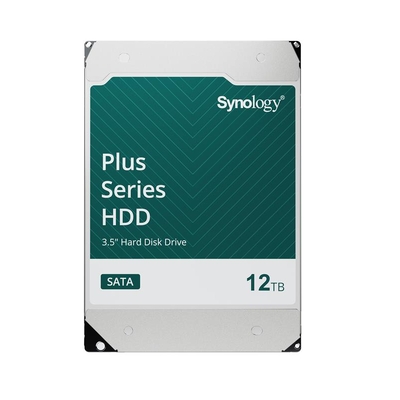
Current Plus Series HDD capacities4TB, 6TB, 8TB, 12TB, 16TB and 20TB. Confirm drive compatibility for the exact NAS before purchase.
Synology Plus Series NAS hard drives
Software matters as much as hardware
Choose the DSM applications and performance path you need
Package availability, supported functions and performance limits vary by NAS model and DSM version.
Synology Drive
Private file access, synchronisation, sharing and version history on compatible DSM systems.
Synology Photos
Mobile photo backup, organisation, albums and controlled sharing from a compatible NAS.
Active Backup Suite
Protection for supported endpoints, servers, virtual machines and selected SaaS workloads.
Hyper Backup
Versioned backup from the NAS to supported local, remote and cloud destinations.
Snapshot Replication
Point-in-time protection for supported shared folders and LUNs on compatible models.
Surveillance Station
Camera recording, monitoring, playback and notifications with model-specific limits and licences.
1GbEBasic backups and light file access.
2.5GbEMore headroom when switches and clients support it.
10GbE+Large creative files, virtualisation and heavier multi-user work.
NVMe & expansionCache, storage pools, memory and expansion remain model-specific.
Two special buying decisions
BeeStation, DiskStation or a surveillance-focused NAS?
Choose the simplest platform that still supports the control, applications and expansion you require.
Choose BeeStation when
- You want built-in storage and a simpler setup.
- Files and photos are the main priority.
- You do not need the full DSM package range or multi-drive RAID.
Choose DiskStation when
- You need DSM applications, user controls and broader backup options.
- You want multiple drives, RAID or a larger upgrade path.
- You are prepared to select compatible drives and administer the system.
For Surveillance Station
- Calculate camera count, resolution, codec, frame rate and retention.
- Confirm the NAS camera limit and device-licence requirements.
- Check power, network coverage, analytics and recording capacity.
Twenty buyer questions answered
Synology NAS frequently asked questions
The first eight questions are shown initially to keep the page compact. Open the remaining questions only when needed.
What is a Synology NAS?
A Synology NAS is a network-connected storage system that keeps files on drives you control and makes them available to authorised users and devices. DiskStation and RackStation models run DiskStation Manager (DSM), while BeeStation uses a simpler software experience. Available applications and limits vary by model.
Which Synology NAS is best for home use?
For simple family photos, files and computer backups, begin with BeeStation or a two-bay DiskStation. Choose a four-bay model when you want more capacity flexibility, additional RAID choices or more room to grow. The required applications and backup plan matter more than bay count alone.
Which Synology NAS is suited to a small business?
A small business commonly starts with a four- or five-bay Plus or neo+ DiskStation when it needs shared files, endpoint backup and room to grow. Check user count, memory, network speed, application support and expected storage growth. RackStation may be better when the business already uses a server rack.
What is the difference between BeeStation, DiskStation and RackStation?
BeeStation is a simplified personal cloud with built-in storage. DiskStation is the desktop NAS range and normally runs DSM. RackStation is designed for rack installation in server rooms and communications cabinets. The right family depends on the required applications, form factor, redundancy and expansion plan.
What does diskless mean?
Diskless means hard drives or SSDs are not included unless the product listing clearly says otherwise. Compatible drives must be purchased, installed and configured before normal use. BeeStation products include built-in storage.
How many drive bays do I need?
Two bays suit many homes and small offices that want one-drive redundancy. Four bays provide more storage and RAID flexibility. Five to eight bays suit larger datasets, more users and longer growth plans. Also allow for the capacity used by redundancy, snapshots and free-space headroom.
What is Synology Hybrid RAID (SHR)?
Synology Hybrid RAID is a storage layout designed to simplify drive management. SHR-1 can tolerate one drive failure and SHR-2 can tolerate two when the NAS and drive count support it. Usable capacity depends on the selected drives and configuration.
Is RAID or SHR the same as a backup?
No. RAID or SHR can help a compatible multi-drive system remain available after a drive failure, but it does not protect against deletion, ransomware, theft, fire, flood or every hardware failure. Keep at least one separate backup, preferably with another copy off-site or in a suitable cloud service.
Can I mix different drive sizes in SHR?
SHR can use mixed drive capacities more flexibly than many traditional RAID layouts, but usable capacity depends on the combination and order of drives. Plan the final target capacity before buying and check the exact NAS drive-compatibility requirements.
Do I have to use Synology hard drives?
Drive requirements depend on the exact NAS model. Check Synology's compatibility list and the individual DeviceDeal product page before purchase. Do not assume that every SATA HDD or SSD provides full support or functionality in every Synology system.
What is the difference between Synology Plus and neo+ models?
Current paired DS725, DS925, DS1525 and DS1825 Plus and neo+ models share the main platform, bay count and networking. Plus models ship with ECC memory, while neo+ models ship with a more accessible non-ECC memory configuration. Compare installed memory and compatible upgrades for the exact model.
What is DSM?
DiskStation Manager is Synology's browser-based operating system for DiskStation and RackStation. It manages storage, users, permissions, updates and compatible applications. Package availability, supported features and performance limits vary by NAS model and DSM version.
Can Synology back up computers, servers and cloud services?
Eligible Synology models can use backup packages for supported Windows, macOS and Linux endpoints, physical servers, virtual machines and selected SaaS workloads. Confirm platform support, licensing and workload limits for the selected NAS and current DSM package version.
Can a Synology NAS replace Dropbox or Google Drive?
Synology Drive can provide private file access, synchronisation, sharing and version history on a compatible DSM system. It can reduce reliance on public cloud storage, but internet bandwidth, security, administration and a separate backup remain your responsibility.
Can Synology Photos back up phones automatically?
Synology Photos can back up photos and videos from supported mobile devices and organise them on a compatible DSM system. Features and performance depend on the NAS, DSM version, mobile app and indexing workload. Keep a separate backup of important photo libraries.
Do I need NVMe SSD cache?
Not always. NVMe cache is most useful for repeated random-access workloads such as busy databases, virtual machines or many users opening small files. Basic backup and large sequential file storage may benefit less. M.2 functions and compatible SSDs are model-specific.
Should I choose 1GbE, 2.5GbE or 10GbE?
1GbE is suitable for basic backup and light file access. 2.5GbE provides more transfer headroom when the NAS, switch and client devices all support it. Consider 10GbE or faster for large creative files, virtualisation or heavier multi-user workloads, subject to model support.
Which expansion unit works with current Synology models?
Expansion units are model-specific. Current DS725+, DS925+, DS1525+ and DS1825+ families use the DX525, while older systems may use a different expansion unit such as the DX517. Confirm the exact NAS and expansion-unit compatibility before ordering.
Can a Synology NAS be used for surveillance cameras?
Compatible Synology systems can run Surveillance Station for camera recording, live viewing, playback and notifications. Camera limits, analytics and device-licence requirements depend on the NAS, camera models and recording settings. Calculate retention capacity before choosing drives.
How should I estimate storage capacity before buying?
List the data stored today, annual growth, retention period and backup copies, then add space for redundancy, snapshots and future growth. Raw drive capacity is not the same as usable capacity. Use a RAID calculator and leave operational free space rather than sizing the system to be full on day one.
Need help building the right Synology solution?
Send DeviceDeal your required capacity, number of users, backup sources, network speed, camera count and expected growth so the storage team can help narrow the models and upgrades to review.
Specifications, compatibility, software support and product availability can change. Check the individual DeviceDeal product page and current Synology documentation before purchase. Optional drives and accessories are sold separately unless the listing states otherwise.