
Mesh Wi-Fi & Extenders

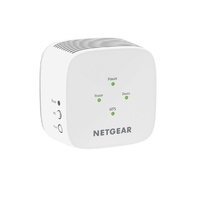
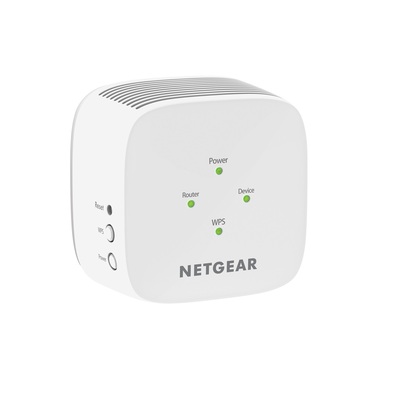
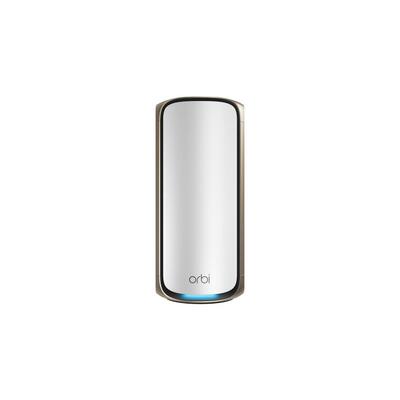
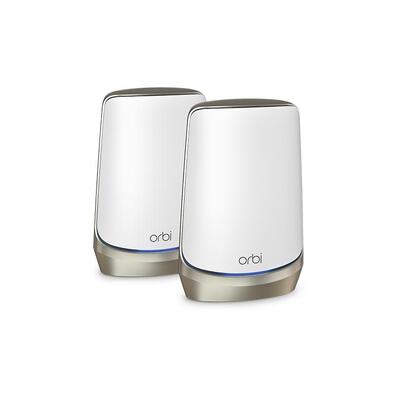
Wireless access point & WiFi system guide
Choose the right WiFi system or access point
Build reliable wireless coverage by choosing the correct solution type, planning for both coverage and simultaneous users, then matching WiFi generation, Ethernet backhaul, PoE power and management requirements. Product coverage and client figures are useful comparisons, but real performance depends on the building and connected devices.
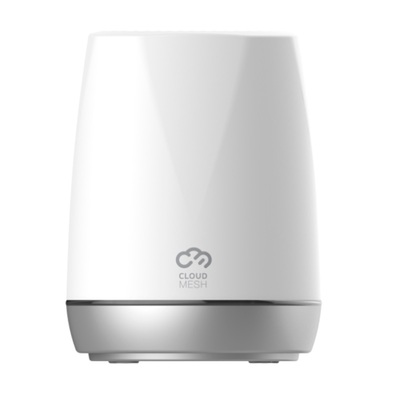
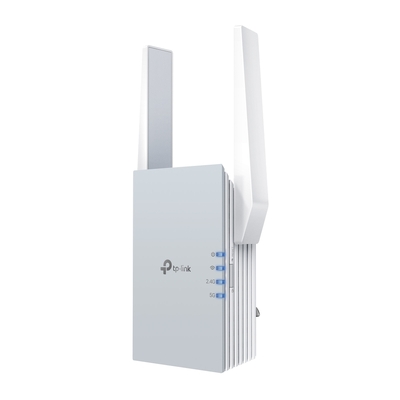
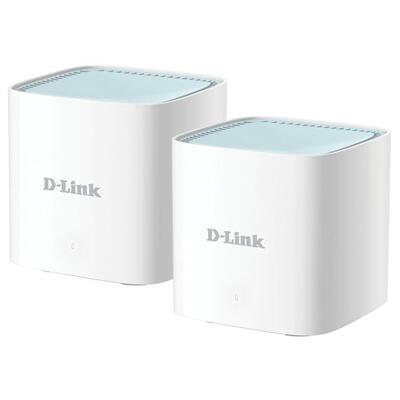
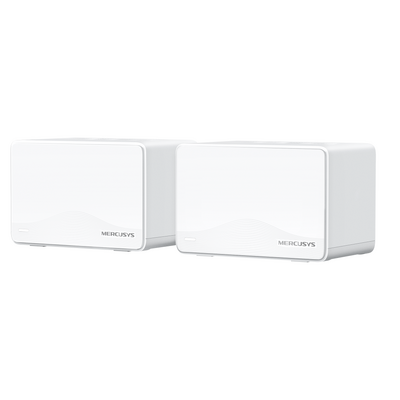
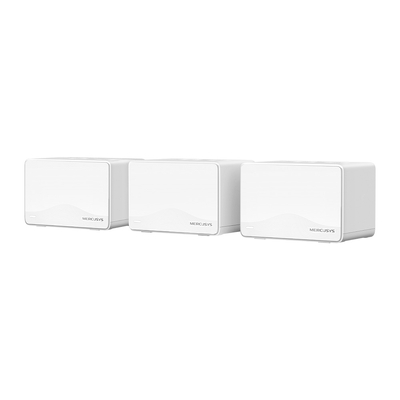
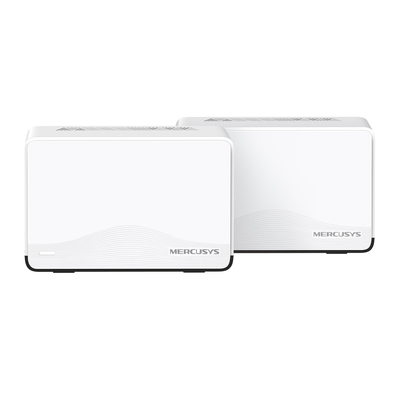
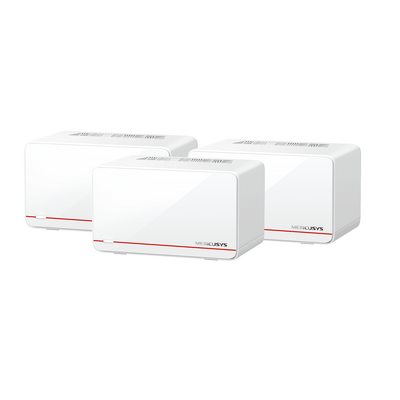
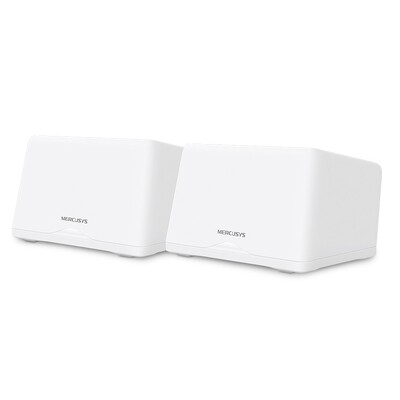
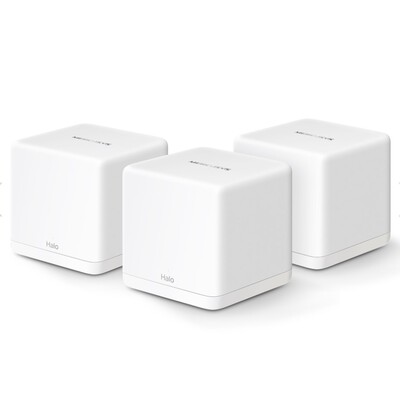
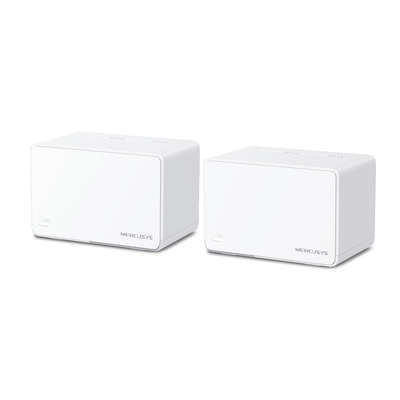
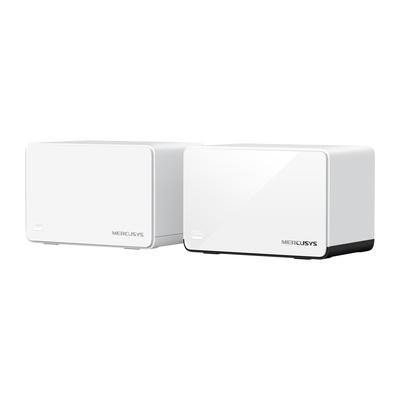
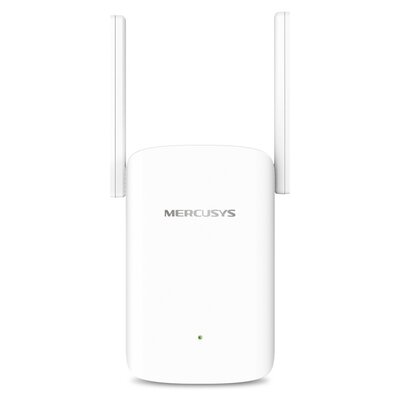
Use wired access points for controlled business WiFi, mesh for convenient multi-room coverage, or an extender for a simple dead-zone fix.
Consider floor area, walls, levels, interference, simultaneous devices and application demand—not only the advertised coverage number.
Confirm WiFi 6, 6E or 7 client support, PoE wattage, Gigabit or multi-gigabit uplinks, controller and licence requirements.
Complete wireless access point buying guide Solution types, WiFi generations, coverage, PoE, uplinks and management
Access point vs mesh WiFi vs extender vs router
| Solution | Best for | Network connection | Important consideration |
|---|---|---|---|
| Wireless access point | Business, school, hospitality and advanced home networks | Usually wired Ethernet; many models use PoE for power and data | Strong control and predictable backhaul, but cabling and compatible management may be required |
| Mesh WiFi system | Homes and small offices needing simple multi-room coverage | Wireless or Ethernet backhaul between coordinated nodes | Easy roaming and setup; wireless backhaul shares available radio capacity unless a dedicated band is used |
| WiFi range extender | Improving one limited dead zone with minimal installation | Repeats an existing wireless signal; selected models support Ethernet | Place it where the original WiFi signal is still usable; performance depends heavily on that upstream connection |
| Wireless router | Creating and routing a small network with integrated WiFi | Connects to the modem or NBN service and routes traffic | An access point extends WiFi; it does not normally replace the router, firewall and internet gateway |
WiFi 5 vs WiFi 6 vs WiFi 6E vs WiFi 7
| WiFi generation | IEEE family | Bands commonly supported | Buying guidance |
|---|---|---|---|
| WiFi 5 | 802.11ac | 5GHz | Suitable for compatible legacy deployments, but offers fewer efficiency improvements for dense modern networks |
| WiFi 6 | 802.11ax | 2.4GHz and 5GHz | A strong mainstream choice for homes and businesses with many compatible devices |
| WiFi 6E | 802.11ax | 2.4GHz, 5GHz and 6GHz on tri-band models | Adds access to the 6GHz band for compatible clients, providing more spectrum and less legacy-device congestion |
| WiFi 7 | 802.11be | 2.4GHz, 5GHz and 6GHz depending on model | Designed for greater capacity, lower latency and advanced features such as Multi-Link Operation on compatible equipment |
WiFi generations are backwards compatible in normal standards-based operation, but a connection uses features supported by both the access point and client. WiFi 6E and WiFi 7 benefits on 6GHz require compatible devices and locally permitted channels. Product labels such as AX3000, AXE5400 or BE11000 describe an aggregated theoretical class—not the speed one client will necessarily receive.
Coverage and client capacity are different
Coverage asks whether a usable signal reaches an area. Capacity asks whether the network can support the number of active devices and their applications at the same time. A single access point may cover a large open area but still become congested in a busy office, classroom or venue. Walls, concrete, metal, glass, shelving, floor levels, interference, antenna pattern, mounting height and client radios all affect the result.
Business planning tip: size a network for the busiest area and busiest time, not only total floor space. A predictive design followed by an on-site wireless survey is the safest approach for high-density, multi-floor, warehouse, outdoor or business-critical deployments.
PoE, Ethernet backhaul and uplink speed
Many business access points use Power over Ethernet so one network cable carries data and power. Confirm whether the AP requires IEEE 802.3af PoE, 802.3at PoE+ or 802.3bt PoE++, and check both the switch’s per-port output and total PoE budget. Gigabit Ethernet suits many APs, while higher-performance WiFi 6E and WiFi 7 models may use 2.5GbE, 5GbE or faster uplinks. A fast wireless specification cannot overcome a slow Ethernet port, overloaded switch uplink or limited internet service.
Local, controller and cloud management
Standalone APs can suit small installations. Controller-managed or cloud-managed systems make it easier to configure multiple APs, apply common SSIDs and security policies, monitor clients, coordinate radio settings and manage remote sites. Check whether the controller is built in, software-based, hardware-based or cloud hosted, and whether ongoing licences are required for management, security or support features.
Placement, roaming and outdoor deployment
Position access points in open, purposeful locations according to their antenna design—often ceiling or wall mounted—rather than hiding them in cupboards or placing them beside large metal objects. Multiple APs can use the same SSID, but roaming decisions are influenced by both network configuration and the client device. Outdoor locations require appropriately rated hardware, approved mounting, weather protection, suitable cabling and compliance with the model’s operating environment.
Wireless network selection checklist
- Solution: access point, mesh system, extender or router
- Environment: home, office, school, venue, warehouse or outdoor
- Coverage: floor plan, walls, levels and expected dead zones
- Capacity: simultaneous users, devices and application demand
- Generation: WiFi 6, WiFi 6E or WiFi 7 client requirements
- Bands: 2.4GHz, 5GHz and compatible 6GHz operation
- Backhaul: Ethernet, wireless mesh or dedicated radio band
- Uplink: Gigabit, 2.5GbE, 5GbE or faster infrastructure
- Power: adapter, PoE, PoE+ or PoE++ requirement
- Management: standalone, controller, cloud and licensing
- Security: WPA3, guest access, VLAN and firmware support
- Installation: mounting, cabling, survey and outdoor rating
Wireless access point & WiFi FAQs Concise answers about coverage, WiFi 7, mesh, PoE, roaming and setup
What is the difference between a wireless access point and a router?
A router connects networks, normally provides internet routing, firewall and DHCP services, and may include built-in WiFi. A wireless access point adds or expands WiFi on an existing network and usually connects back to a router or switch through Ethernet.
Should I choose access points or a mesh WiFi system?
Choose wired access points when you want predictable backhaul, business features and centralised control. Choose mesh WiFi when convenient installation and coordinated multi-room home or small-office coverage are the priority. Ethernet backhaul can improve compatible mesh systems.
Is a WiFi extender the same as an access point?
No. An extender normally repeats an existing wireless signal, while an access point usually creates WiFi from a wired network connection. A wired access point generally offers more predictable performance; an extender is simpler for improving one limited dead zone.
What is the difference between WiFi 6, WiFi 6E and WiFi 7?
WiFi 6 uses 802.11ax across 2.4GHz and 5GHz. WiFi 6E extends 802.11ax into the 6GHz band for compatible devices. WiFi 7 uses 802.11be and introduces further capacity, latency and multi-link improvements on compatible access points and clients.
Will a WiFi 7 access point work with older devices?
Generally yes. Standards-based WiFi 7 access points can support older compatible WiFi clients on supported bands, but each connection uses capabilities shared by the AP and device. Older clients cannot use WiFi 7-only features.
How many wireless access points do I need?
The correct number depends on floor plan, construction, antenna design, mounting, interference, concurrent clients and application demand. Manufacturer coverage figures are estimates; use a wireless design and site survey for multi-floor, high-density or business-critical installations.
Will adding more access points always improve WiFi?
No. Extra APs can increase capacity when properly designed, but too many poorly placed or badly configured radios can create co-channel interference. Channel planning, transmit power, spacing, cabling and client demand should guide the design.
Can multiple access points use the same WiFi name?
Yes. Multiple APs can broadcast the same SSID and security settings to create a consistent network. Controller-assisted features can improve coordination, but the client device still influences when and how it roams between access points.
Does a wireless access point need an Ethernet cable?
Most business access points use Ethernet for reliable network backhaul, and many receive power through the same cable using PoE. Some models support wireless mesh uplinks, but wireless backhaul can share radio capacity and depends on signal quality.
What PoE standard does my access point need?
Check the exact access point specification. Models may require 802.3af PoE, 802.3at PoE+ or 802.3bt PoE++. Insufficient power can disable radios, USB ports or advanced features, or prevent the AP from operating correctly.
Do I need a 2.5GbE port for WiFi 6E or WiFi 7?
Not every deployment requires multi-gigabit Ethernet, but many higher-performance WiFi 6E and WiFi 7 access points include 2.5GbE or faster uplinks to avoid a Gigabit bottleneck. Match the AP, switch, cabling and expected traffic.
What is the difference between 2.4GHz, 5GHz and 6GHz WiFi?
The 2.4GHz band generally reaches farther but has less spectrum and more congestion. The 5GHz band offers more capacity with shorter practical reach. The 6GHz band adds cleaner spectrum for compatible WiFi 6E and WiFi 7 devices, but coverage and wall penetration require careful planning.
Can I install an indoor access point outside?
No, unless the manufacturer explicitly approves that environment. Outdoor access points are designed for specified moisture, dust, temperature and UV exposure. Use the correct environmental rating, mounting, surge protection and outdoor-rated cabling.
Do cloud-managed access points require a subscription?
It depends on the brand and platform. Some include cloud management without an ongoing fee, while others require licences for operation, advanced security, support or analytics. Check the licence term, renewal cost and behaviour after expiry.
How many devices can one access point support?
A manufacturer’s maximum client count is not the same as the number of devices that will receive good performance. Real capacity depends on active users, radio bands, client capabilities, interference and application throughput. Design for simultaneous demand, not only registrations.
Where should a wireless access point be installed?
Install it in an open location that matches its antenna pattern and mounting instructions, commonly on a ceiling or wall. Avoid cupboards, large metal objects and unnecessary obstructions. Validate final placement with a site survey when reliable coverage matters.
Will a new access point make my internet faster?
It can improve the local wireless connection when the old WiFi is the bottleneck, but it cannot increase the speed of the internet plan. Performance also depends on the router, switch, Ethernet uplink, cabling, interference and client device.