Home & everyday
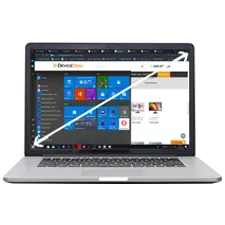
For browsing, email, streaming, online shopping and everyday documents.
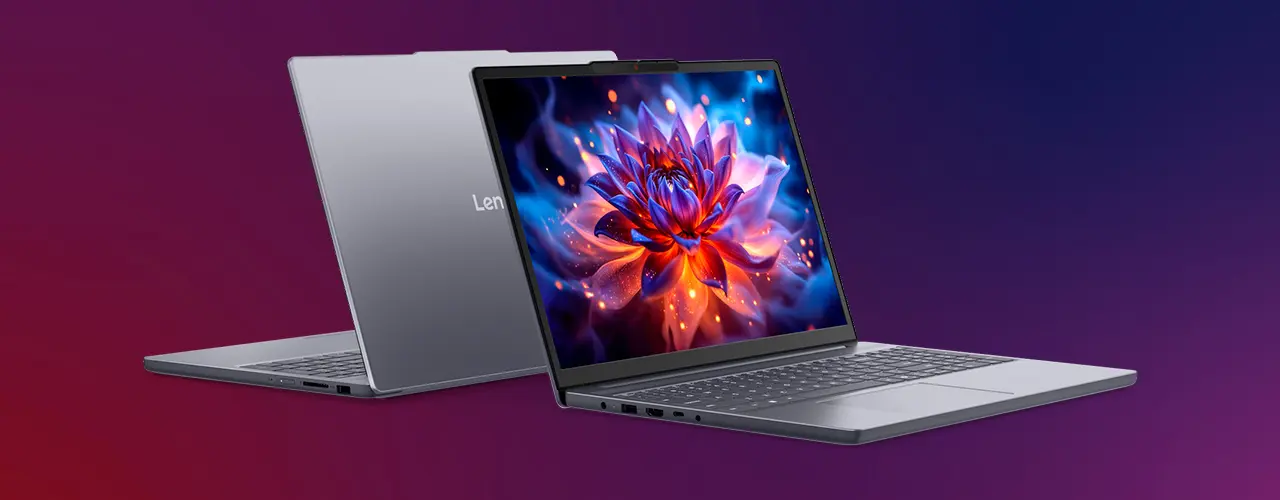
The right laptop is the one that matches your work, study or entertainment needs. Start with the software you use, then compare processor, memory, storage, graphics, display, battery life and ports.
Start with your workload
Start with your main use. The four quick profiles below help narrow the choice before you compare detailed specifications.
For browsing, email, streaming, online shopping and everyday documents.
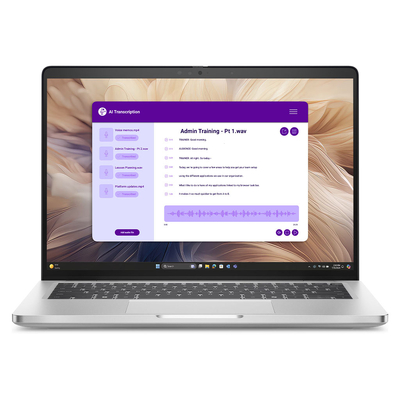
For research, assignments, video calls and carrying between classes or locations.
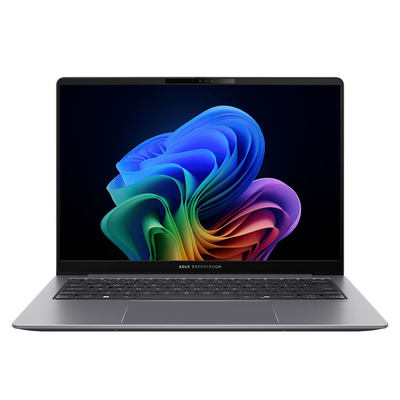
For office applications, multitasking, meetings, travel and company workflows.
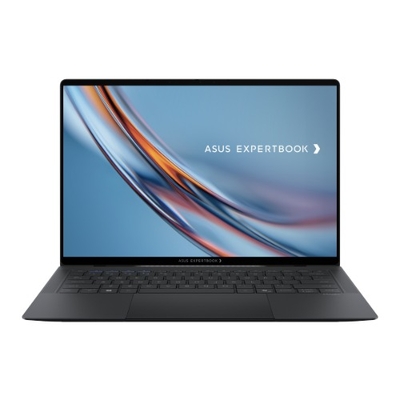
For gaming, CAD, 3D work, photography, animation and video production.
Use these practical starting points to compare configurations, then confirm the requirements of your own applications and connected devices.
| Use case | Processor | Memory | Storage | Display & graphics |
|---|---|---|---|---|
| Home & everyday | Entry-level to mainstream current-generation processor | 8GB for light use; 16GB provides more multitasking headroom | 256GB to 512GB SSD | Full HD-class display; integrated graphics are usually suitable |
| Study & portable use | Efficient mainstream processor | 16GB is a practical target for heavier multitasking | 512GB SSD is a useful starting point | 13- to 14-inch suits portability; check course requirements |
| Business & professional | Mainstream or performance processor based on applications | 16GB or more for regular multitasking | 512GB or more, with capacity matched to company data needs | Consider docking, webcam, external displays and model-specific security |
| Gaming & creative work | Performance-class processor matched to the workload | 16GB to 32GB or more, depending on the software | 1TB SSD can be useful for large games and project files | Dedicated GPU and higher-quality display when the workload requires them |
Important: These are practical starting points, not fixed requirements. Always check the recommended specifications for your games, professional software, course applications and connected devices before purchasing.
Performance and efficiency
The processor affects responsiveness, multitasking, battery behaviour and the applications a laptop can handle. Compare the exact processor model and the complete laptop design—not only the Core, Ryzen or Snapdragon badge.
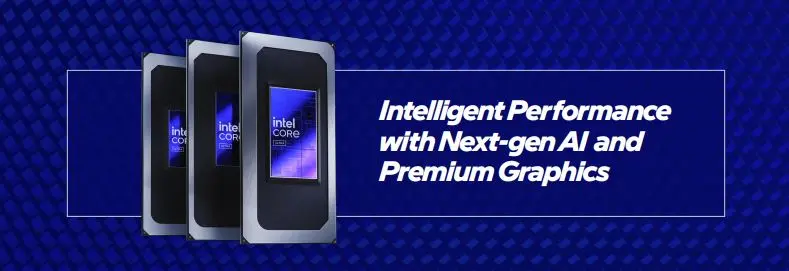
Intel laptop ranges cover everyday, business, creator and gaming systems. Core Ultra models can include an NPU for supported AI workloads; always compare the full processor name and laptop specifications.

AMD laptop processors span mainstream productivity through demanding creative and gaming work. Ryzen AI models include dedicated processing for supported AI features and applications.
Snapdragon X platforms are designed for modern Windows laptops with integrated AI processing. Most everyday apps can run natively or through emulation, but check specialised software, games, drivers and accessories before buying.
A Neural Processing Unit is a dedicated engine for supported AI tasks. It can assist features such as background effects, noise reduction and other on-device AI experiences without relying only on the CPU or GPU.
Choose an AI-capable laptop when the applications or Windows features you plan to use can benefit from its NPU. For general use, processor performance, memory, storage, display and battery life remain just as important.
Processor families and model names change regularly. For a fair comparison, check the exact CPU, core configuration, graphics, memory, cooling design and manufacturer-rated features of each laptop.
Smooth multitasking and fast access
RAM controls how comfortably the laptop can keep applications active, while storage holds Windows, programs and files. Both affect day-to-day usability.
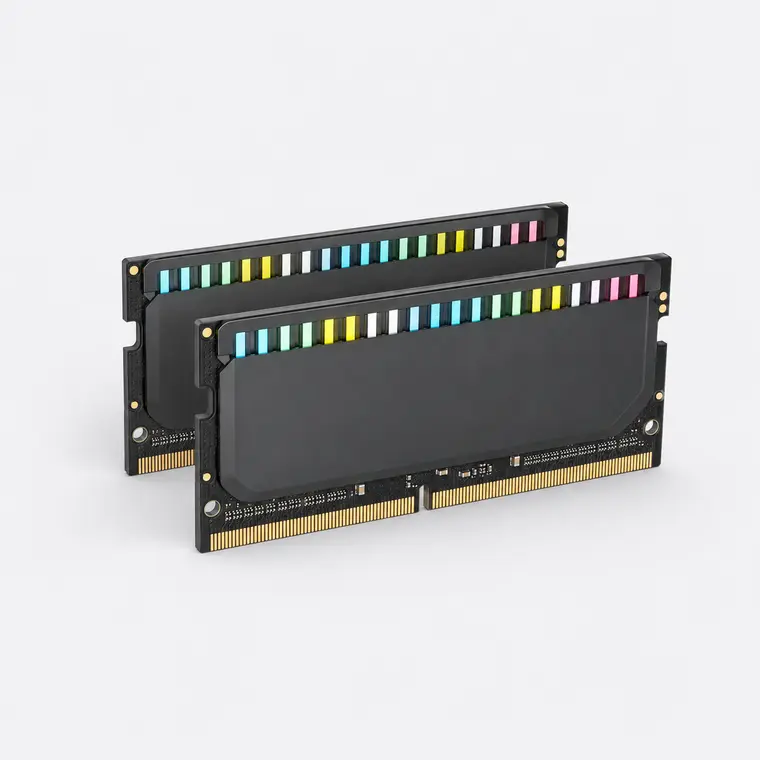
8GB can suit light everyday use. 16GB gives most users more room for browsers, office applications and video calls. 32GB or more may be appropriate for large creative projects, engineering tools, virtual machines or demanding games.
Check whether the memory is upgradeable. Some thin laptops use soldered memory that cannot be expanded later.
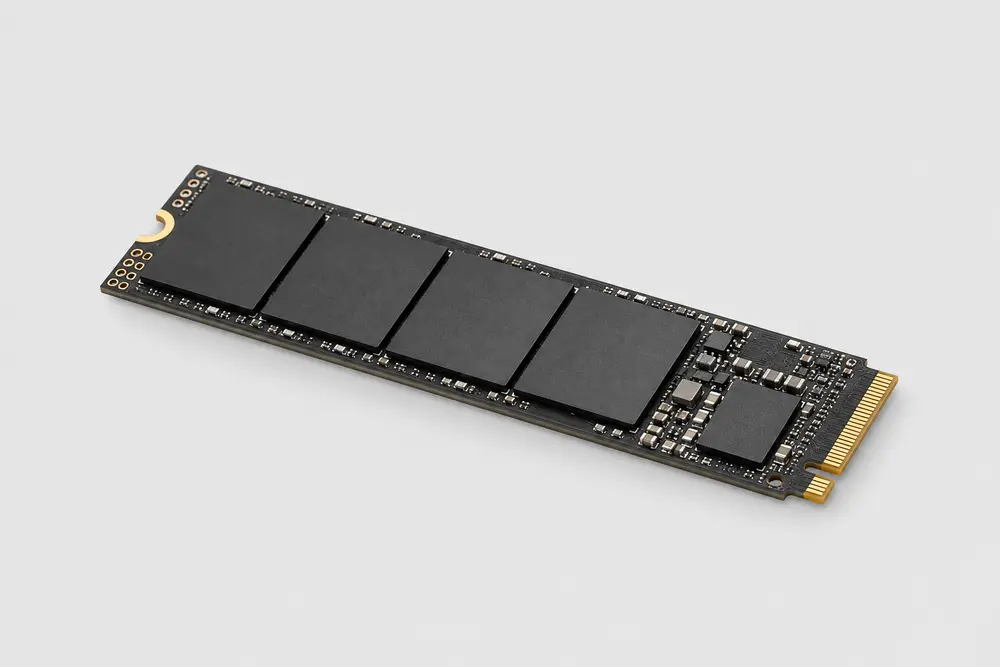
An SSD is the preferred main drive for a modern laptop because it supports quick startup, responsive applications and fast file access. NVMe SSDs connect through PCI Express, while some entry-level systems may use other forms of flash storage.
Choose capacity based on your applications and files: 256GB can suit lighter use, 512GB is a practical middle ground, and 1TB or more helps with games, media libraries and large projects.
What you see and how it is rendered
A strong processor cannot compensate for a screen that is uncomfortable to use or graphics that do not meet your software requirements. Consider the whole laptop.
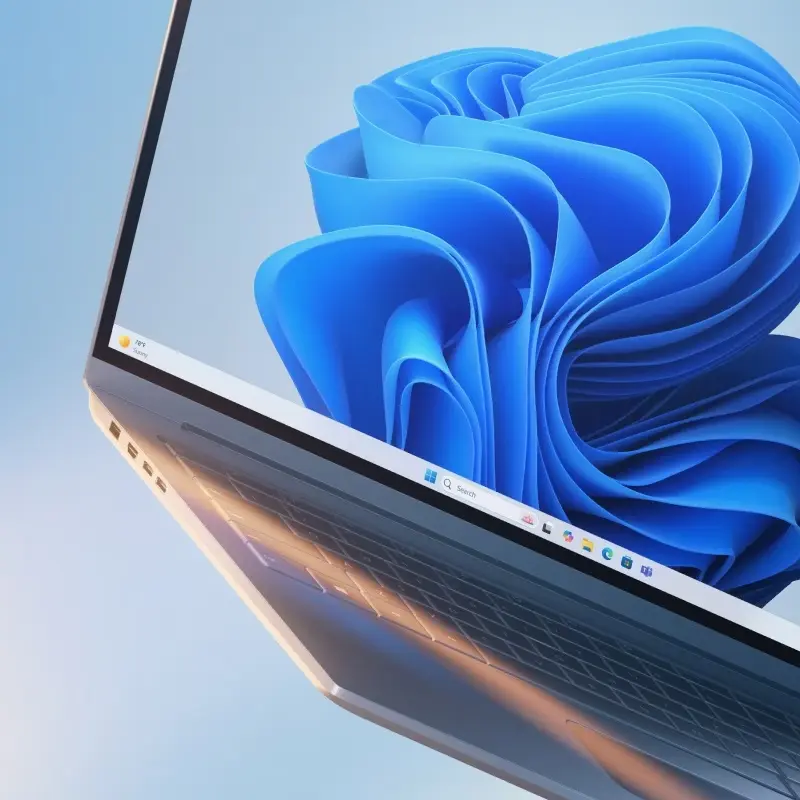
Look beyond screen size. Compare resolution, brightness, colour coverage, refresh rate, finish and panel technology. Full HD-class resolution is a sensible baseline for many buyers, while higher-resolution displays can provide sharper text and more workspace.
OLED and mini-LED options can offer strong contrast and premium image quality, but compare the exact model for brightness, colour, battery impact and suitability for your work.
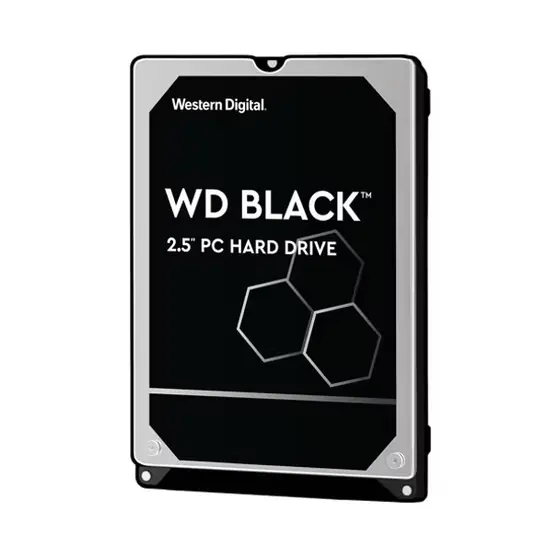
Some larger or older laptop designs may use a 2.5-inch hard disk drive for additional capacity. HDDs are mechanical and generally slower than SSDs, so an SSD is the better choice for the operating system and frequently used applications.
If you need more space, also consider external storage or cloud storage based on your backup, security and access requirements.
Suitable for everyday productivity, streaming and many light creative tasks. Capability varies by processor and memory configuration.
Consider a dedicated GPU for demanding games, 3D applications, CAD, animation or accelerated creative software that specifically benefits from one.
A touchscreen is useful for pen input, presentations and convertible use. Check whether a compatible pen is included or sold separately.
Battery life changes with workload, brightness, wireless use and power settings. Compare model-specific test information and the charger weight as well as the laptop.
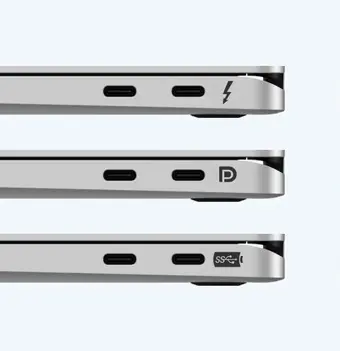
Connect displays, docks and accessories
USB-C describes the connector shape, not every capability. One USB-C port may handle basic data only, while another may support charging, display output, USB4 or Thunderbolt. Check the symbols and the laptop specification carefully.
Optical drives: Built-in DVD and Blu-ray drives are uncommon in current laptops. If you still use discs, a compatible external USB optical drive is usually the practical option.
Balance workspace and portability
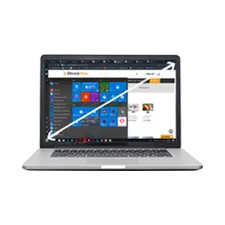
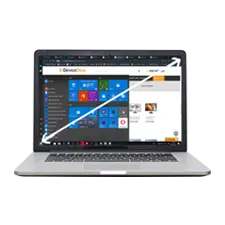
Screen size is measured diagonally. Smaller laptops are easier to carry, while larger screens provide more viewing space and often suit desk-based work. Overall weight and chassis dimensions still vary by model.
Build a complete setup
The right accessories can make a laptop easier to carry, connect and use at a desk. Choose them after checking the laptop's ports, dimensions, charging requirements and device compatibility.
Add ports or connect displays, storage, networking and desktop peripherals. Check USB-C, USB4 or Thunderbolt support on the exact laptop.
Create more screen space for office work, study, creative applications or gaming. Confirm the laptop's display outputs and supported resolutions.
A separate keyboard and mouse can make a regular desk setup more comfortable. Choose wired, wireless or Bluetooth connectivity to suit your laptop.
Consider a headset for video calls, online learning, gaming or focused listening. Check whether you need USB, 3.5mm or Bluetooth connectivity.
Choose a bag, sleeve or case that matches the laptop's actual dimensions, not only its advertised screen size.
Portable drives can add file capacity or support a backup routine. Compare capacity, connection type and the way you plan to protect your data.
Common buying questions
Quick answers to the questions customers commonly ask when comparing laptops.
Start with the requirements of your main software, then compare the exact processor, RAM, SSD capacity, graphics, display, battery information, ports, weight and operating system. For business or study, also check required security, management and compatibility features.
8GB can suit light browsing, email and basic documents. 16GB gives more room for multitasking and is a practical target for many students, home users and business users. Demanding creative, engineering, gaming or virtual-machine workloads may need 32GB or more.
256GB can work for lighter use and cloud-based files. 512GB is a practical middle ground for many buyers. Choose 1TB or more when you keep large games, media libraries, virtual machines or project files on the laptop.
All three platforms can suit modern laptops. Compare the exact processor and complete device rather than the brand alone. Snapdragon-based Windows laptops use Arm architecture, so check specialised applications, games, drivers and accessories for compatibility.
An AI laptop includes hardware designed to accelerate supported AI workloads, often through an NPU. Copilot+ PC is a specific Windows category with defined hardware requirements. Check the exact model and the AI features available in your region, Windows version and applications.
Integrated graphics are suitable for everyday office work, streaming and many light creative tasks. A dedicated GPU may be important for demanding games, CAD, 3D rendering, animation and software that specifically uses GPU acceleration.
13- and 14-inch laptops usually balance portability and workspace well. 15- and 16-inch models provide more viewing area, while 17-inch and larger systems suit users who prioritise screen space over portability. Check the laptop's actual weight and dimensions as well.
OLED can provide deep blacks, strong contrast and vivid colour, which can be attractive for media and creative work. Compare brightness, colour accuracy, refresh rate, finish, power use and manufacturer care features for the exact model.
No. USB-C describes the connector. Data speed, charging, DisplayPort output, USB4 and Thunderbolt support vary between ports and laptops. Check the product specification and port symbols before choosing a dock, charger or monitor.
It depends on the model. Some laptops have replaceable memory or an accessible SSD, while others use soldered memory or have limited internal access. Check the manufacturer specification and consider warranty conditions before opening or upgrading a laptop.
Choose accessories around where and how you use the laptop. A bag or sleeve can help with carrying, while a mouse, keyboard, headset, external monitor or dock can improve a desk setup. External storage may help with capacity or backups. Always check port, power, size and operating-system compatibility before buying.
Browse current models
Browse the current DeviceDeal laptop range and compare the exact specifications that matter for your work, study or entertainment.